Get Google Reviews: QR Code, Link and Templates for Your Request
You create a QR code for Google reviews directly in your business profile: under "Read reviews", via the share icon at "Get more reviews". That is also where you copy the review link. This guide shows you where to use the link and code, how to ask for reviews fairly, what Google prohibits and how to respond to praise, criticism and fake reviews.
 By Anne Zeller, owner of AZ Onlinemarketing · Last updated: November 2026
14 min read
At a glance
- Link and QR code
- In the business profile under "Read reviews", share icon at "Get more reviews". According to Google, you can only create the QR code on a computer.
- Allowed
- Ask every customer for an honest review after a real experience.
- Prohibited
- Discounts, gifts or money for reviews, asking only satisfied customers, bought reviews.
- Consequences of violations
- Google removes the reviews and can restrict the profile, up to a public warning notice.
- Replies
- Possible only after the profile is verified. The author is notified.
- Deleting
- You cannot delete a review yourself. Google only removes what violates the policies.
- Law
- In Germany, a request for a review by email counts as advertising. Have your process checked.
Create a Google Review Link and QR Code: Step by Step
Google provides the link and QR code itself. You do not need an external generator, and you avoid typos in the address.
On a Computer
- Open your business profile via business.google.com or Google Search, signed in with the account that manages the profile.
- Select "Read reviews".
- Click the share icon at "Get more reviews".
- For the link, click "Copy". For the QR code, right-click the code and choose "Save image as …".
On a Smartphone
According to the Google help, you can only create QR codes for reviews in the browser on a computer. So create the code once on a computer and save it as a file that you pass on to the print shop, designer or checkout.
Test Before Use
Scan the saved code with two different smartphones and open the link once in a private browser window. If your profile's review window opens, everything is right. Check again if you changed the name or address in the profile.
| What | What for | Where you use it |
|---|---|---|
| Review link | Share digitally | Email, messenger, customer portal, invoice as a PDF |
| QR code | Show in print | Counter, reception, delivery note, business card, handover folder |
Swipe sideways to see the whole table.
Collect Google Reviews: 7 Ways That Work Day to Day
The best method is the one your team uses every day without thinking. Pick two or three ways that fit your customer contact and build them firmly into your process.
1. Ask in Person at the End
The strongest moment is the end of a job: handover, pickup, last appointment. One short sentence while pointing at the QR code on the counter is enough. People who are asked in person remember the request later.
2. QR Code at the Place of Service
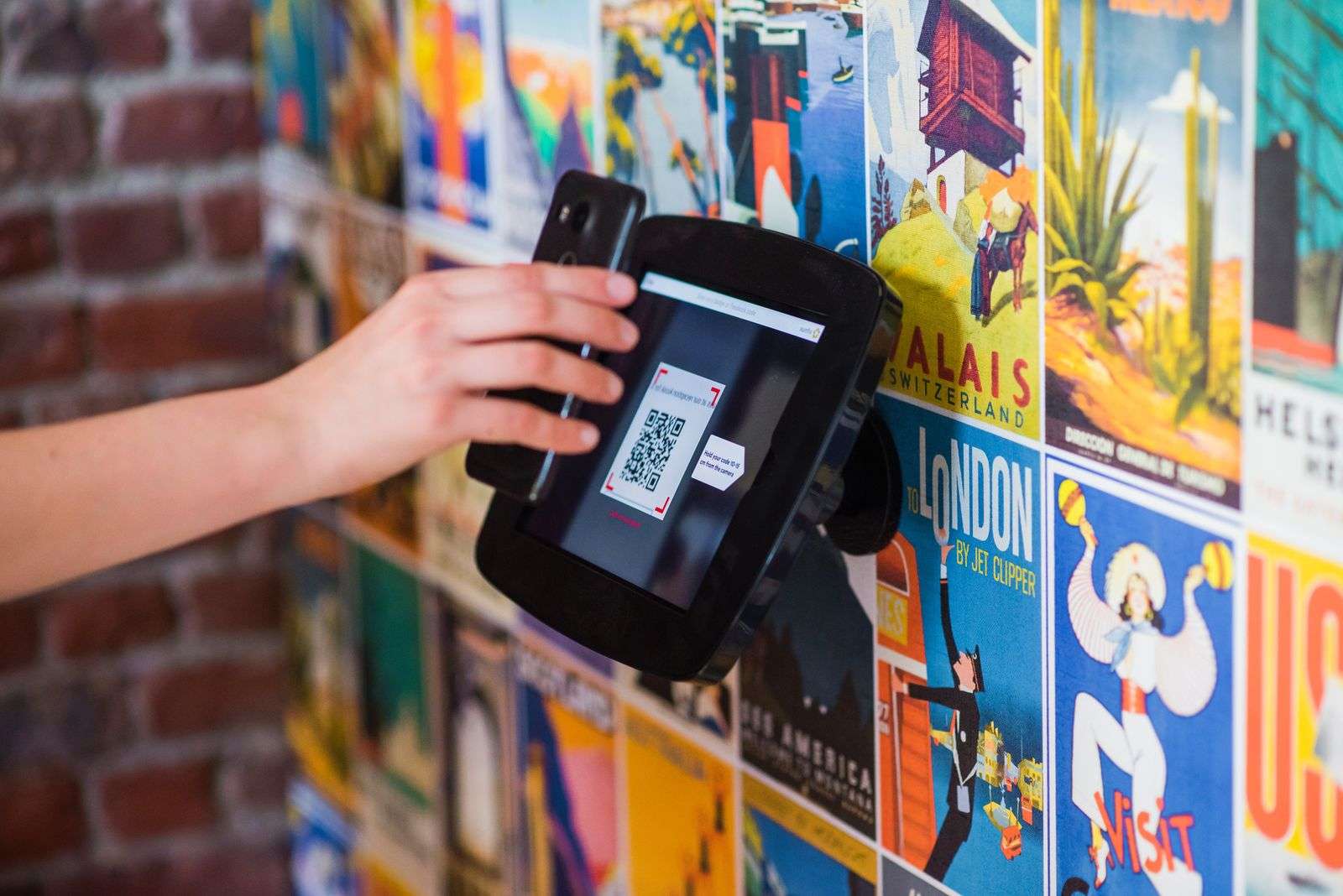
A stand at the checkout or reception, a sticker in the waiting area, a card in the handover folder. Google explicitly names the printed QR code in the store as an option. Place it where people wait for a moment.
3. Link in the Closing Message
After a project, you send a message anyway: final report, handover, date for the follow-up check. The link fits at the end. Check the legal framework first (see the section on law and data protection).
4. QR Code on Invoice or Delivery Note
Google names receipts as a place for the link or code. On paper, the QR code works, in a PDF the link. For invoice emails, the same legal check applies as for any other email.
5. End of a Chat or Phone Call
In customer service by chat or messenger, the request fits the end of a resolved issue. On the phone, you ask whether you may send the link in a message.
6. Business Card and Handover Folder
Trades, practices and consultancies often hand over documents. A small line with a QR code on the back of the business card or in the folder reminds people of the request even days later.
7. Website and Signature
A note on the contact page or in the email signature reaches people who already know you. This way brings less than the personal request but costs no effort.
Templates: How to Ask for a Google Review
The following texts are examples from us. Adjust tone and form of address to your customers. All templates ask for an honest review, with no reward and no instruction on the content.
Template in Person (at the End)
"Great that everything worked out. We would appreciate it if you shared your experience on Google. The QR code here takes you straight to the review."
Template Message After the Job
"Hi [first name], thanks for your order. If you like, describe your experience with us in a short Google review. This link takes you straight there: [link]. Best regards, [name]"
Template Reminder (One Time)
"Hi [first name], a week ago we sent you the link to the Google review. If you find the time: [link]. Thank you and best regards, [name]"
Template Card or Stand
"How was it with us? Tell others. Scan the code and write a Google review."
Wordings to Cross Out
- "You get 10% off for a 5-star review." (Incentive, prohibited)
- "Were you satisfied? Then review us on Google. If not, write to us directly." (Steers unhappy customers away and so specifically asks for positive reviews)
- "Please rate us with 5 stars." (Instruction on the content)
One reminder is enough. Anyone who does not respond twice does not want to leave a review.
What Google Allows for Reviews and What It Doesn't
Google regulates the topic in its policies for user-generated content in Maps. Bought, rewarded or steered reviews are called fake engagement there. The table summarizes the rules.
| Allowed | Not allowed |
|---|---|
| Ask all customers for a review | Specifically ask only satisfied customers for positive reviews |
| Share the link and QR code from the profile | Payments, discounts, free products or services in return |
| Remind people of the request once | Offer money or benefits so that someone deletes a negative review |
| Give the team a fixed process for the request | Give employees a number of reviews or specific content to write |
| Let people review real experiences | Buy reviews or have them written by employees, family or business partners |
| Report prohibited reviews | Write reviews about competitors to harm them |
Google also treats unusually many or conspicuously uniform reviews as a sign of manipulation. A steady stream of genuine reviews is therefore safer than a one-time campaign.
What Happens in Case of Violations
Google removes the affected reviews. Google can also restrict the profile: For a certain time, no new reviews appear, existing reviews are hidden or the profile shows a warning notice that fake reviews were removed. Google announces such restrictions by email. You can appeal the decision.
Buying Google Reviews: Why It Is No Shortcut
You can find offers for bought reviews quickly. They violate Google's policies, put your profile at risk and deceive the people who read your reviews. They are also legally risky. Genuine reviews grow more slowly but they stay.
Law and Data Protection: A Short Check Note
This section is not legal advice. It shows you where to have your process checked. It refers to German law.
- Email and messenger: The German Federal Court of Justice (BGH) classified a request for a review in an invoice email as advertising (judgment of 10 July 2018, VI ZR 225/17). Under section 7 of the German Unfair Competition Act (UWG), advertising by email needs explicit consent. For existing customers, there is an exception with four conditions, including a clear notice of the right to object in every message.
- Incentives: Google prohibits rewards for reviews. Whether a campaign is also open to attack under competition law, you clarify with legal advice before the start.
- Data in replies: In replies to reviews, do not name order, health or contract details. This applies especially to practices, law firms and consultancies bound by confidentiality.
The personal request on site and the QR code at the counter are not affected by the email question. That is why they come first in the list above.
Reply to Google Reviews: Rules and Templates
You can reply once your profile is verified: under "Read reviews", click "Reply" on the review in question. Google checks every reply, usually within 10 minutes, in individual cases up to 30 days. After that it is public, and the author gets a notification. Replies can be edited or deleted later.
According to Google, you do not have to thank every person publicly. We still recommend replying to every critical review and replying briefly and concretely to positive ones. Readers see that someone is listening.
Rules for Every Reply
- Stay friendly, factual and brief.
- Write as a conversation partner, not as a salesperson. Offers have no place in replies.
- Do not name private data, even if you recognize the person.
- Sign with a name or initials.
- Reply promptly.
Template for a Positive Review
"Thank you, [first name], for your review. Great that the installation went so smoothly on Saturday. We will pass your praise on to [name] and the team. Best regards, [name]"
Name a detail from the review. That sets your reply apart from a text block.
Template for a Negative Google Review
"Hi [first name], thank you for telling us. We are sorry you waited so long for the callback. That is not our standard. Feel free to call me directly at [phone], and we will sort it out. [Name, role]"
Admit mistakes honestly, show a way to a solution and move the clarification out of public view into a conversation. Do not justify yourself point by point.
Template if You Cannot Find the Person as a Customer
"Hi [name], we cannot find a job with us that matches your description. Please get in touch at [phone] or [email] so we can match the case. [Name]"
Stay factual here too. Readers often pay more attention to your reply than to the review.
Have Negative and Fake Google Reviews Removed
You cannot delete a review yourself. Google only removes reviews that violate the policies. A critical but accurate review is not a violation. Google does not settle disputes between businesses and customers.
When Reporting Is Worth It
- The review does not describe a real experience, for example from someone who was never at your business.
- It clearly comes from competitors or from a conflict of interest.
- It contains insults, threats or personal data.
- It is off-topic, such as a political comment with no relation to your business.
- Many uniform reviews suddenly appear.
How to Report a Review
- Open "Read reviews" in the profile.
- Choose "Report" on the review, give the reason and send the report.
- Alternatively, use the tool for managing reviews. There you also see the status of your report.
According to Google, the review usually takes several days. If the result is "Report reviewed – no policy violation", you can appeal once, for up to ten reviews at the same time. Until the decision, you reply to the review factually so readers know your side. For content you consider unlawful, such as false statements of fact, you also get legal advice.
Review Process Day to Day: The Flow in Four Steps
Reviews arise when the request becomes a fixed part of the process and does not depend on how the day goes. This flow is a recommendation from our work.
| Step | What happens | Who |
|---|---|---|
| 1. Set the moment | Decide the one point in customer contact where you ask (handover, closing conversation, last treatment) | Owner |
| 2. Prepare material | Print the QR code, store the link in templates and checkout system, clarify the legal framework for emails | Office |
| 3. Ask every person | Everyone gets the same request, with no pre-selection and no target number for the team | Everyone with customer contact |
| 4. Reply weekly | Read new reviews, reply, report prohibited ones | A fixed person with a stand-in |
Swipe sideways to see the whole table.
Checklist for Your Review Routine
0 of 8 done
How reviews work together with category, photos and website for local visibility is shown in the local SEO checklist in 12 steps. If you are setting up your profile from scratch, our guide to creating a Google Business Profile helps.
Ask at the right moment
Most reviews come from someone asking in person. A QR code at the counter and a fixed sentence at handover bring more than any mass email.
Free · 30 minutes · no obligation
Frequently asked questions
How do I create a QR code for Google reviews?
Open your business profile on a computer, select "Read reviews" and click the share icon at "Get more reviews". Right-click the QR code and choose "Save image as …" to save it as a file. According to Google, you cannot create the code on a smartphone. Test the code with two devices before printing.
Where do I find my Google review link?
In the same window as the QR code: open the business profile, "Read reviews", then the share icon at "Get more reviews" and "Copy". The link leads straight to your profile's review window. Save it where your team can reach it, for example in text templates or the checkout system.
May I reward customers for a Google review?
No. Google prohibits payments, discounts, free products or services in exchange for reviews. Reviews must be based on real experiences. Google removes such reviews, and the profile can be restricted. What is allowed is the simple request for an honest review, with no reward and no instruction on the content.
May I ask only satisfied customers for a review?
No. Google prohibits specifically asking for positive reviews. That includes a pre-question that sends satisfied customers to Google and unhappy ones to an internal form. Ask all customers equally. A realistic picture with a few points of criticism also looks more credible than nothing but top ratings.
May I ask for a review by email?
That is legally delicate in Germany. In 2018, the Federal Court of Justice classified a review request in an invoice email as advertising, and advertising by email needs consent or the conditions of the existing-customer exception in section 7 UWG. Have your process checked. The personal request and the QR code on site are not affected.
Can I delete a negative Google review?
You cannot delete a review yourself. You can report it, and Google removes it if it violates the policies, for example because it does not describe a real experience or contains insults. Accurate criticism stays. Reply to it factually and offer a conversation.
How long does it take Google to review a reported review?
According to Google, the review usually takes several days. You see the status in the tool for managing reviews. If Google finds no violation, you can appeal once. Google usually checks replies to reviews within 10 minutes, in individual cases it takes up to 30 days.
Do I have to reply to every review?
Google does not require it and writes that you do not have to thank every person publicly. We recommend answering every critical review and replying briefly to positive ones with a concrete detail. That shows readers that someone is listening. Plan a fixed slot for it each week.
How many Google reviews do I need?
Google names no fixed number. Google counts the number and rating of reviews among the factors for the prominence of a business in local results. More important than a target value is a steady stream of genuine, recent reviews. Google treats unusually many reviews at once as a possible sign of manipulation.
Sources (retrieved on 5 November 2026): Google Business Profile Help: Create a link or QR code to request reviews · Google Business Profile Help: Tips to get more reviews · Google Business Profile Help: Manage customer reviews · Google Business Profile Help: Report inappropriate reviews · Google Business Profile Help: Restrictions for policy violations · Google Maps: Prohibited and restricted content · Google Business Profile Help: Tips to improve your local ranking · Section 7 UWG, German Unfair Competition Act (gesetze-im-internet.de, in German) · LTO: BGH, judgment of 10 July 2018, VI ZR 225/17 (in German)